Classroom Plus Plus (CPP) Developer Guide
Acknowledgements
- SE-EDU's AddressBook-Level3 was used as a base for our project, and we have adapted and extended it to suit our needs.
- GitHub Copilot was heavily used to assist in writing test code across all new components.
Setting up, getting started
Refer to the guide Setting up and getting started.
Design
Architecture
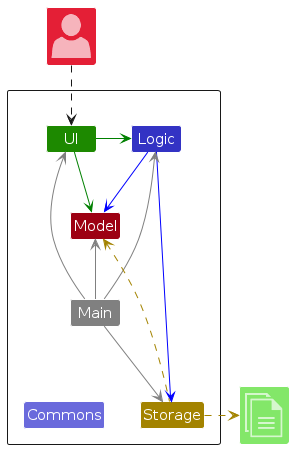
The Architecture Diagram given above explains the high-level design of the App.
Given below is a quick overview of main components and how they interact with each other.
Main components of the architecture
Main (consisting of classes Main and MainApp) is in charge of the app launch and shut down.
- At app launch, it initializes the other components in the correct sequence, and connects them up with each other.
- At shut down, it shuts down the other components and invokes cleanup methods where necessary.
The bulk of the app's work is done by the following four components:
UI: The UI of the App.Logic: The command executor.Model: Holds the data of the App in memory.Storage: Reads data from, and writes data to, the hard disk.
Commons represents a collection of classes used by multiple other components.
How the architecture components interact with each other
The Sequence Diagram below shows how the components interact with each other for the scenario where the user issues the command delete ct/1.
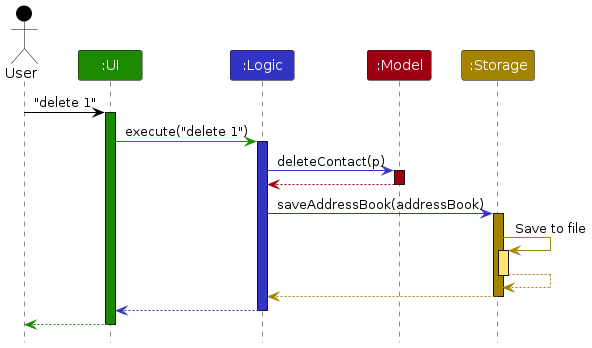
Each of the four main components (also shown in the diagram above),
- defines its API in an
interfacewith the same name as the Component. - implements its functionality using a concrete
{Component Name}Managerclass which follows the corresponding APIinterfacementioned in the previous point.
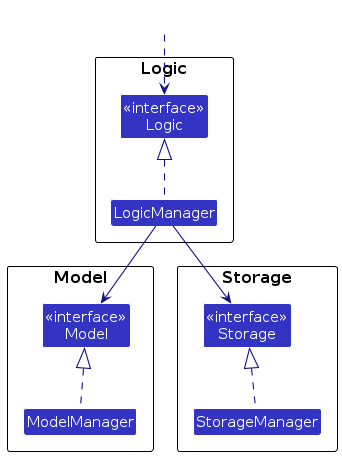
For example, the Logic component defines its API in the Logic.java interface and implements its functionality using the LogicManager.java class which follows the Logic interface. Other components interact with a given component through its interface rather than the concrete class (reason: to prevent outside component's being coupled to the implementation of a component), as illustrated in the (partial) class diagram below.
The sections below give more details of each component.
UI component
The API of this component is specified in Ui.java
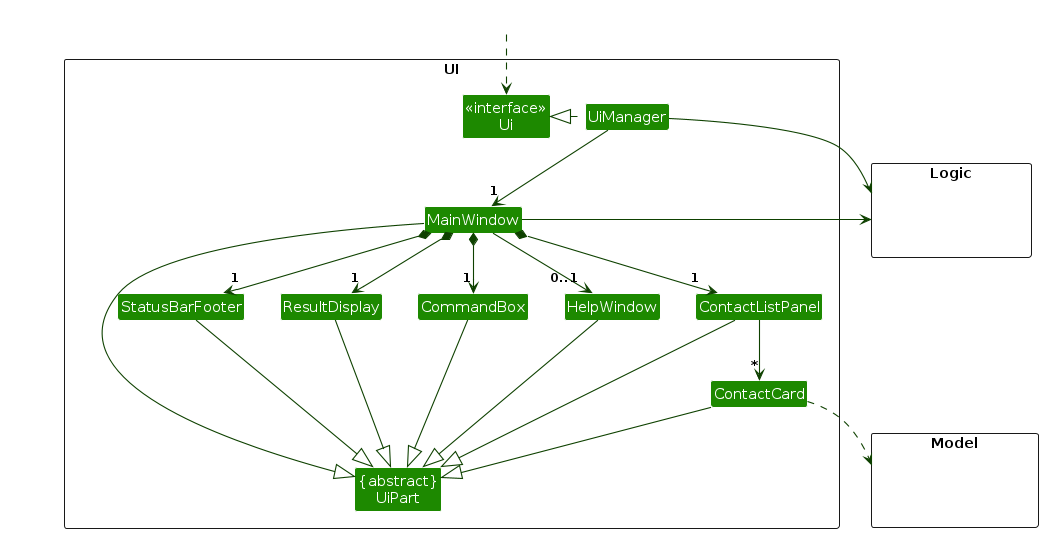
The UI consists of a MainWindow that is made up of parts e.g.CommandBox, ResultDisplay, ContactListPanel, StatusBarFooter etc. All these, including the MainWindow, inherit from the abstract UiPart class which captures the commonalities between classes that represent parts of the visible GUI.
The UI component uses the JavaFX UI framework. The layout of these UI parts are defined in matching .fxml files that are in the src/main/resources/view folder. For example, the layout of the MainWindow is specified in MainWindow.fxml
The UI component,
- executes user commands using the
Logiccomponent. - listens for changes to
Modeldata so that the UI can be updated with the modified data. - keeps a reference to the
Logiccomponent, because theUIrelies on theLogicto execute commands. - depends on some classes in the
Modelcomponent, as it displaysContactobject residing in theModel.
Logic component
API : Logic.java
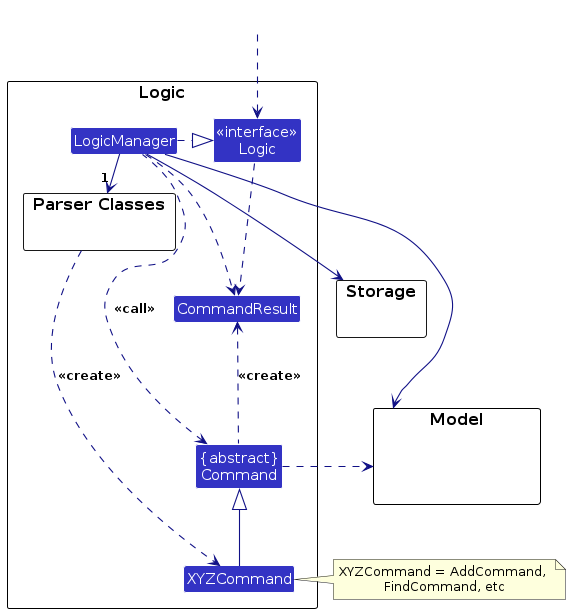
Here's a (partial) class diagram of the Logic component:
The sequence diagram below illustrates the interactions within the Logic component, taking execute("delete ct/1") API call as an example.
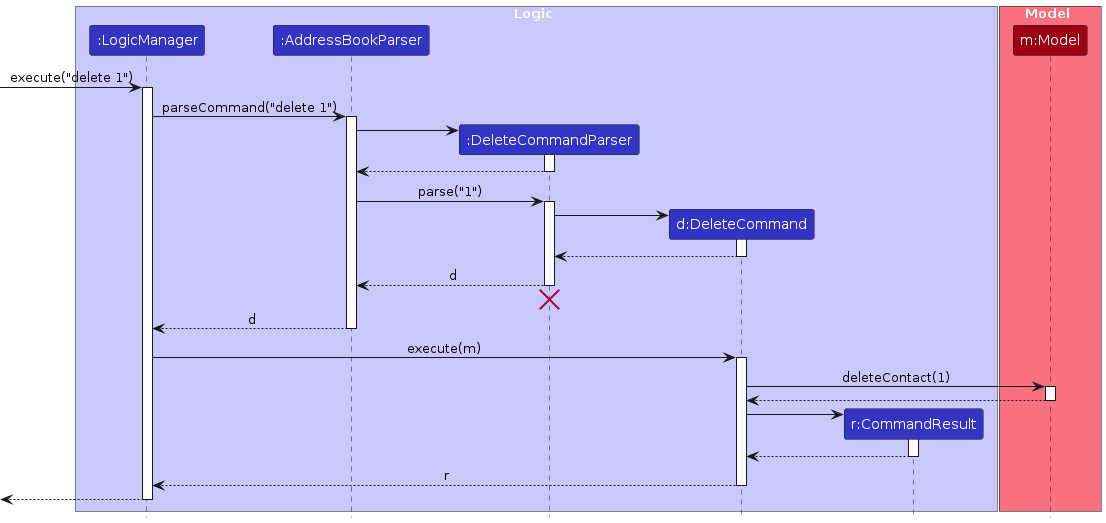
Note: The lifeline for DeleteCommandParser should end at the destroy marker (X) but due to a limitation of PlantUML, the lifeline continues till the end of diagram.
How the Logic component works:
- When
Logicis called upon to execute a command, it is passed to anAddressBookParserobject which in turn creates a parser that matches the command (e.g.,DeleteCommandParser) and uses it to parse the command. - This results in a
Commandobject (more precisely, an object of one of its subclasses e.g.,DeleteContactCommand) which is executed by theLogicManager. - The command can communicate with the
Modelwhen it is executed (e.g. to delete a contact).
Note that although this is shown as a single step in the diagram above (for simplicity), in the code it can take several interactions (between the command object and theModel) to achieve. - The result of the command execution is encapsulated as a
CommandResultobject which is returned back fromLogic.
Here are the other classes in Logic (omitted from the class diagram above) that are used for parsing a user command:
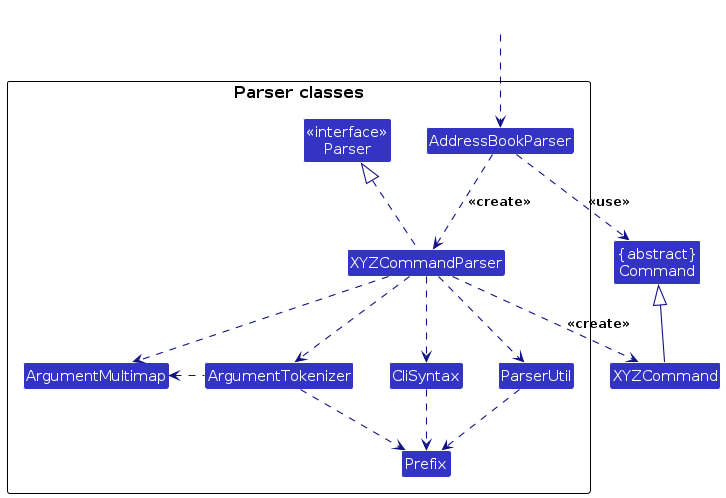
How the parsing works:
- When called upon to parse a user command, the
AddressBookParserclass creates anXYZCommandParser(XYZis a placeholder for the specific command name e.g.,AddContactCommandParser) which uses the other classes shown above to parse the user command and create aXYZCommandobject (e.g.,AddContactCommand) which theAddressBookParserreturns back as aCommandobject. - All
XYZCommandParserclasses (e.g.,AddContactCommandParser,DeleteCommandParser, ...) inherit from theParserinterface so that they can be treated similarly where possible e.g, during testing.
Model component
API : Model.java
Model — current design
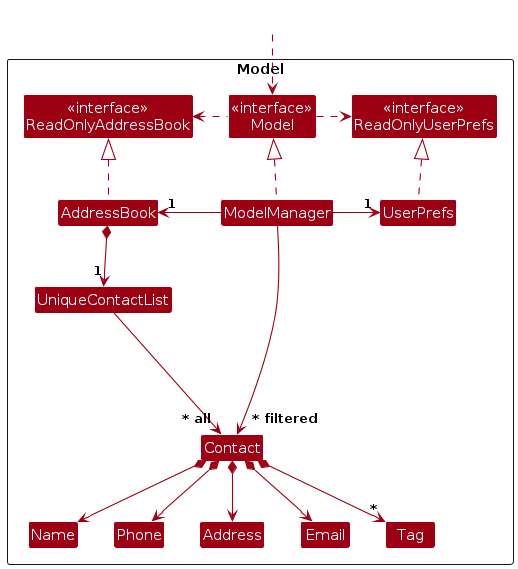
Model (current design): shows AddressBook and its relations to the 3 main entities: Contact, ClassGroup, and Assignment through the Unique{Entity}List counterparts. The Model component also includes a UserPref class to store user preferences (e.g., file path of the address book data, GUI settings).
Contacts view
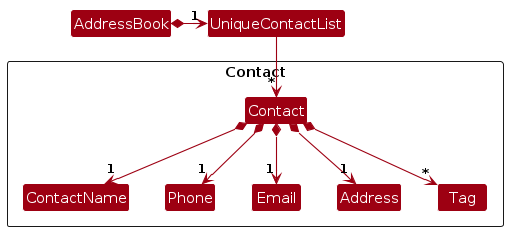
Contacts view: highlights classes and contact-related entities.
Classes view
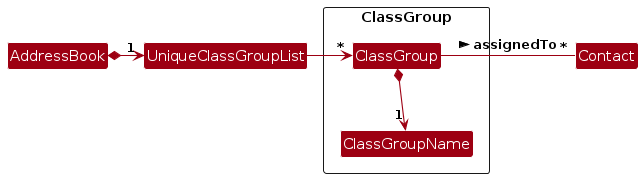
ClassGroup view: highlights classes and class group-related entities.
Assignments view
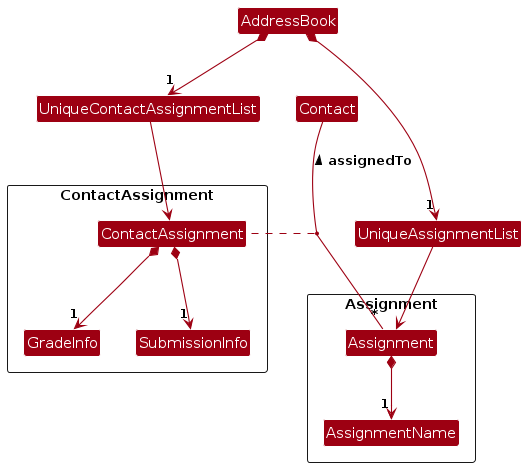
Assignments view: highlights classes and assignment-related entities and their relations to Contact.
The Model component,
- stores the address book data (with 3 main entities:
Contact,ClassGroup, andAssignment). - each entity has a corresponding
Unique{Entity}List(e.g.,UniqueContactList,UniqueClassGroupList,UniqueAssignmentList) to manage the list of that entity and enforce uniqueness constraints. - exposes the currently selected/filtered entities as an unmodifiable
ObservableList<{Entity}>for UI binding. - stores a
UserPrefobject exposed as aReadOnlyUserPref. - is self-contained and does not depend on
UI,LogicorStorageimplementations.
Storage component
API : Storage.java
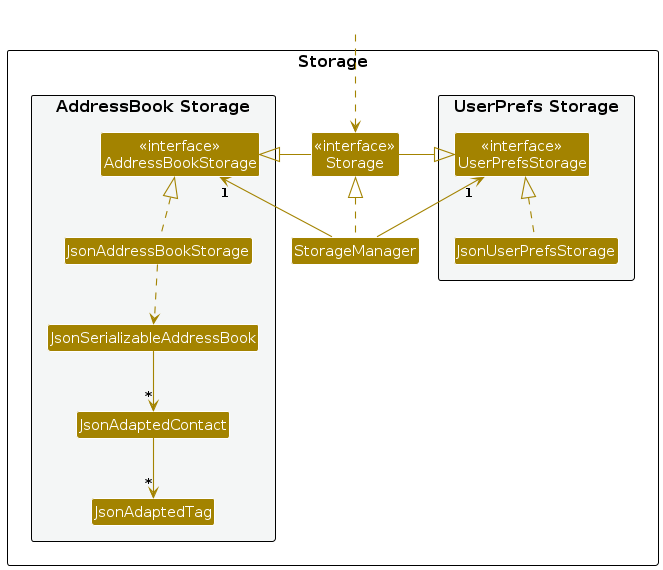
The Storage component,
- can save both address book data and user preference data in JSON format, and read them back into corresponding objects.
- inherits from both
AddressBookStorageandUserPrefStorage, which means it can be treated as either one (if only the functionality of only one is needed). - depends on some classes in the
Modelcomponent (because theStoragecomponent's job is to save/retrieve objects that belong to theModel)
Common classes
Classes used by multiple components are in the cpp.commons package.
Implementation
This section describes some noteworthy details on how certain features are implemented.
ClassGroup management
The Model component manages ClassGroup entities using UniqueClassGroupList. This enforces uniqueness constraints and provides methods to add, delete, and update the entities.
Within the ClassGroup entities, the Contact entities that belong to the class are stored as a set of Strings representing the Contact's id field. This design allows us to easily make edits to contacts without having to worry about updating the ClassGroup entities, improving the efficiency of edit operations.
Assignment management
The Model component manages Assignment entities using UniqueAssignmentList. This enforces uniqueness constraints and provides methods to add, delete, and update the entities.
Assignment entities adopt a different approach, by introducing a separate association class ContactAssignment to represent the association between a Contact and an Assignment. This allows us to easily manage the submission status and grading details including the score of an assignment for each contact, without having to modify the Contact or Assignment entities themselves. These functionalities are abstracted out into the AssignmentManager class, which manages the ContactAssignment entities, and provides methods to add, delete, update, and retrieve the entities efficiently.
Similar to the ClassGroup design, the ContactAssignment class also stores the Contact's id field instead of a reference to the Contact object itself, for easier management of edits to Contacts. ContactAssignment objects also store the Assignment's id field so that any edits to the Assignment can be easily managed as well.
A separate UniqueContactAssignmentList is used to manage the list of ContactAssignments, and enforce uniqueness constraints for them.
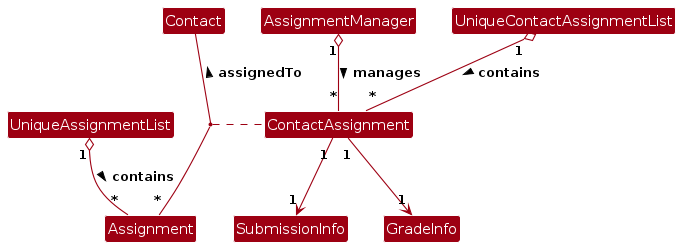
As you might already have noticed, ContactAssignment objects do not store any information about classes. We chose this design to allow users to have greater control over the contacts who are allocated assignments. For example, a user can choose to allocate an assignment to the entire class initially and choose to unallocate it from certain contacts later on, without having to worry about the class information being stored in the ContactAssignment objects.
As a result of this design, any class group operations will not affect the ContactAssignment entities. Hence, users will have to manually allocate or unallocate assignments to contacts when they allocate or unallocate contacts from class groups. We believe this is a reasonable trade-off to give users more control over the assignment allocation.
Delete enhancements
The delete command now supports deleting contacts, assignments, and class groups through a single command word. DeleteCommandParser acts as a dispatcher: it inspects which prefix is present in the user input (ct/ for contacts, ass/ for assignments, c/ for class groups) and constructs the corresponding subcommand (DeleteContactCommand, DeleteAssignmentCommand, or DeleteClassGroupCommand).
The sequence diagram below illustrates the interactions within the Logic component for the command delete c/CS2103T10:
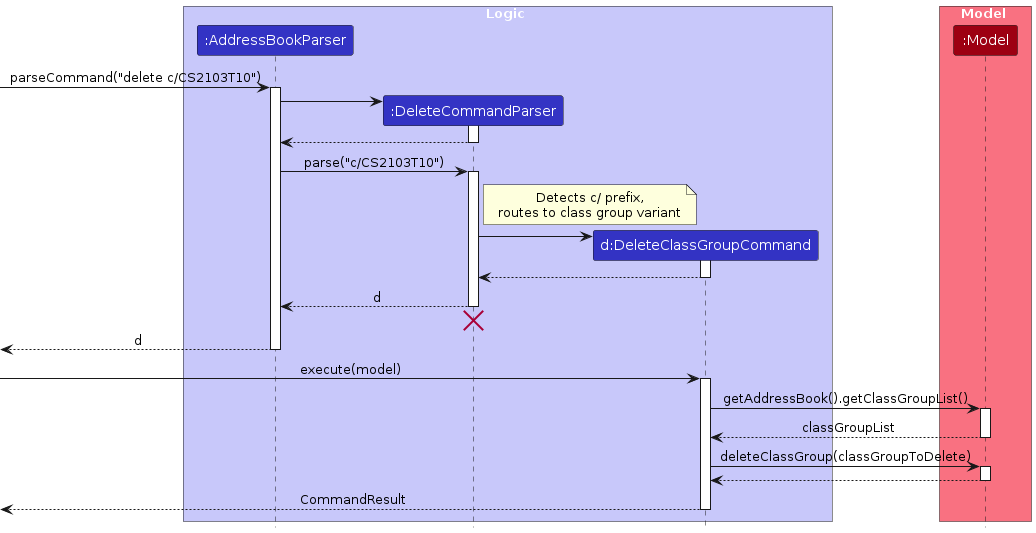
Note: The lifeline for DeleteCommandParser should end at the destroy marker (X) but due to a limitation of PlantUML, the lifeline continues till the end of diagram.
List feature
The list command displays all contacts, assignments, or class groups to the user. This command is implemented using a family of subcommands: ListContactCommand, ListAssignmentCommand, and ListClassCommand, all extending the abstract ListCommand class.
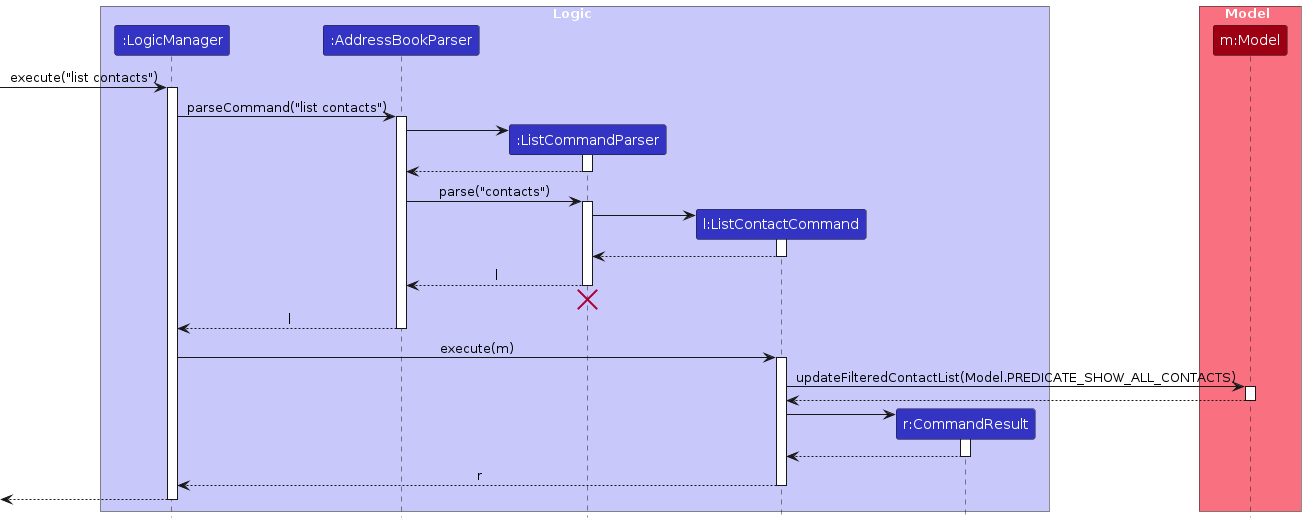
When a user executes list contacts, the following sequence occurs:
ListCommandParserparses thecontactssubcommand and creates aListContactCommand.- The
LogicManagerexecutes theListContactCommand. - The command calls
model.updateFilteredContactList(Model.PREDICATE_SHOW_ALL_CONTACTS)to update the filtered list in the model. - The
Modelupdates its observableFilteredList<Contact>, which automatically triggers UI updates via JavaFX data binding. - A
CommandResultis returned withListView.CONTACTS, directing the UI to display the contact list panel.
The sequence diagram below illustrates the interactions within the Logic component, taking list contacts as an example.
UI Integration:
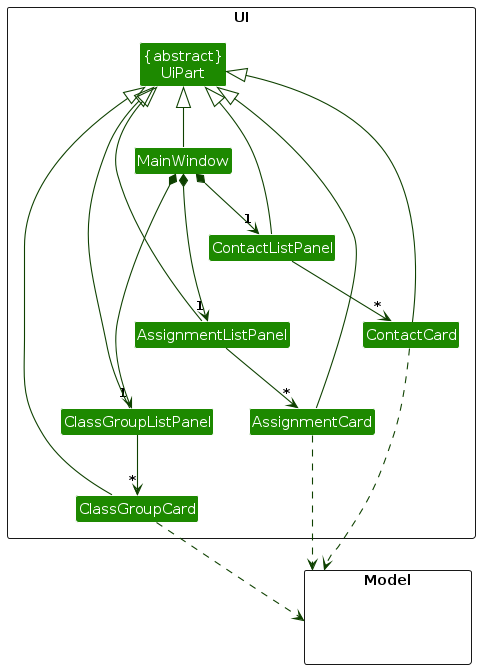
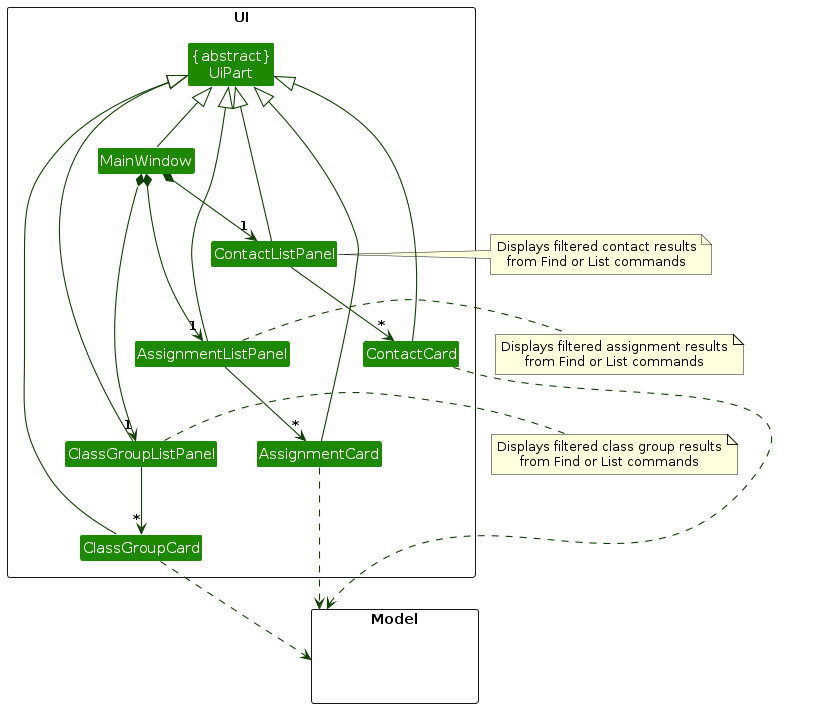
The UI layer handles list display through a hierarchy of components:
MainWindowcontains three list panel placeholders:contactListPanelPlaceholder,assignmentListPanelPlaceholder, andclassListPanelPlaceholder.ContactListPanel,AssignmentListPanel, andClassGroupListPaneleach accept anObservableList<T>and render it as a list of individual cards through a JavaFXListView.- Each card (e.g.,
ContactCard,AssignmentCard,ClassGroupCard) displays the entity with its index and details. - The
CommandResult.ListViewenum controls which panel is displayed to the user.
The class diagram below illustrates the structure of the UI components involved in displaying list data.
Design:
Both list and find-related commands use predicates to filter data, providing a consistent approach to data manipulation. The observable lists in JavaFX automatically update the UI whenever the filtered list changes, eliminating the need for manual UI refresh calls.
Find feature
The find-related commands allow users to search for contacts, assignments, or class groups using various search criteria. Three separate find commands are implemented: findcontact (findct), findass, and findclass (findc), each supporting different search modes and predicates.
Here is a class diagram showing the structure of the Find command hierarchy:
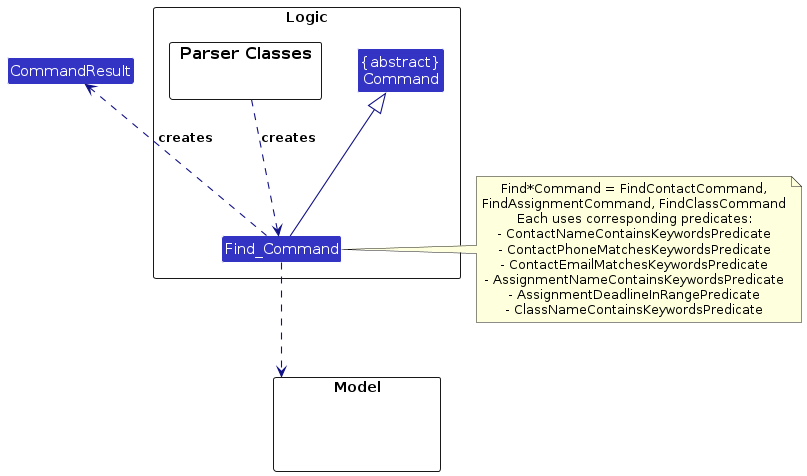
FindContactCommand (findcontact / findct)
FindContactCommand (alias: findct) supports three search modes:
- Name Search (
n/CONTACT_NAME_SEARCH_STRING): Substring-based name matching (case-insensitive). UsesContactNameContainsKeywordsPredicate. - Phone Search (
p/PHONE_NUMBER_SEARCH_STRING): Substring-based phone number match. UsesContactPhoneMatchesKeywordsPredicate. - Email Search (
e/EMAIL_SEARCH_STRING): Substring-based email address match (case-insensitive). UsesContactEmailMatchesKeywordsPredicate.
Exactly one of the three search modes must be specified per command.
FindAssignmentCommand (findass)
FindAssignmentCommand supports two search modes:
- Name Search (
ass/ASSIGNMENT_NAME_SEARCH_STRING): Substring-based matching (case-insensitive). UsesAssignmentNameContainsKeywordsPredicate. - Deadline Search (
ds/DEADLINEand/orde/DEADLINE): Date range matching supporting formatsdd-MM-yyyyordd-MM-yyyy HH:mm. UsesAssignmentDeadlineInRangePredicate.
Exactly one of the two search modes must be specified per command. For deadline search, at least one of ds/ or de/ must be provided.
FindClassCommand (findclass / findc)
FindClassCommand (alias: findc) supports one search mode:
- Name Search (
c/CLASS_NAME_SEARCH_STRING): Substring-based matching (case-insensitive). UsesClassNameContainsKeywordsPredicate.
Parsing and Execution
Each Find*CommandParser is responsible for:
- Validating that exactly one search mode is specified (enforced through mutually exclusive prefix checks).
- Parsing the search criteria into the appropriate format.
- Creating the corresponding predicate object.
- Returning a
Find*Commandwith the predicate.
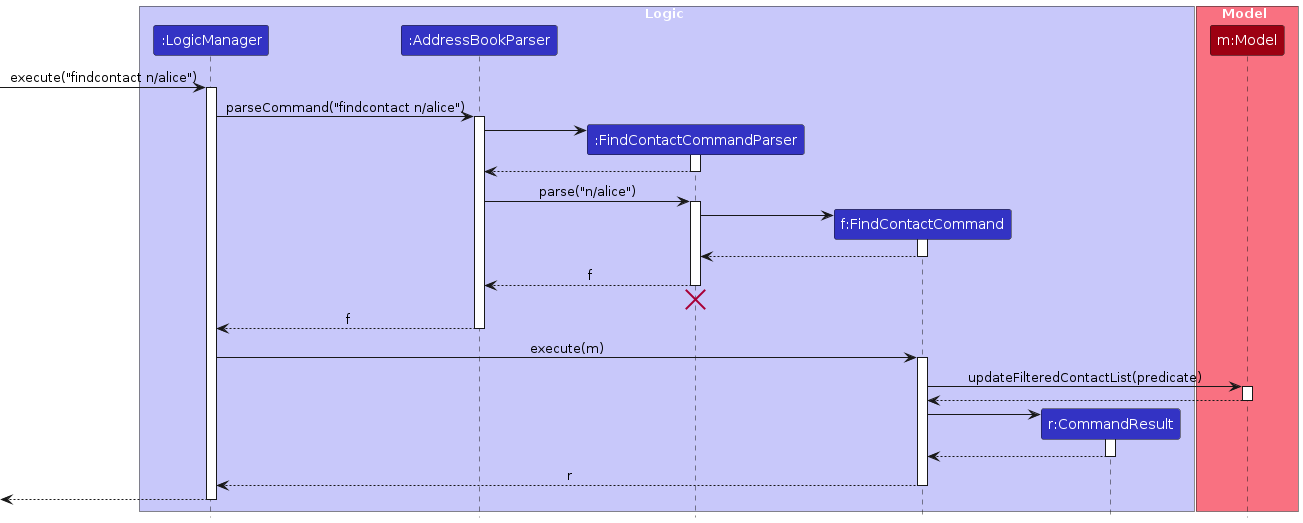
When a user executes findcontact n/alice l:
FindContactCommandParseridentifies the name search mode and extracts the substring "alice l".- It creates a
ContactNameContainsKeywordsPredicatewith this substring. - A
FindContactCommandis instantiated with this predicate. - The
LogicManagerexecutes the command, which callsmodel.updateFilteredContactList(predicate). - The
Modelupdates itsFilteredList<Contact>, automatically triggering UI refresh through JavaFX observables. - A
CommandResultwithListView.CONTACTSdirects the UI to display the filtered contact list.
The sequence diagram below illustrates the interactions within the Logic component for the findcontact n/alice command:
Predicate Implementation
Each predicate implements the Predicate<T> interface to evaluate whether an entity matches the search criteria:
ContactNameContainsKeywordsPredicate: Checks if the contact's name contains the search string as a substring (case-insensitive).ContactPhoneMatchesKeywordsPredicate: Checks if the contact's phone contains the search string as a substring (case-insensitive).ContactEmailMatchesKeywordsPredicate: Checks if the contact's email contains the search string as a substring (case-insensitive).AssignmentNameContainsKeywordsPredicate: Checks if the assignment name contains the search string as a substring (case-insensitive).AssignmentDeadlineInRangePredicate: Checks if the assignment deadline falls within the specified date/time range, supporting partial matching (e.g.,31-12-2024matches31-12-2024 23:59).ClassNameContainsKeywordsPredicate: Checks if the class name contains the search string as a substring (case-insensitive).
Design Considerations
- Command Separation: Each entity type (Contact, Assignment, ClassGroup) has its own find command (
findcontact,findass,findclass), making the API clear and preventing confusion about which command to use. - Constraint Enforcement: Parsers ensure only one search mode is used per command through mutual exclusivity checks.
- Flexible Search Modes: Different entity types support different search modes based on their properties (e.g., assignments support deadline search, which contacts do not).
- Case Sensitivity and Partial Matching: Searches are case-insensitive and substring-based for better user experience.
- Consistent Pattern: All find commands follow the same predicate-based filtering pattern, maintaining architectural consistency with the list commands.
UI Integration for Find:
The find commands uses the same UI components as the list commands. Results are displayed through ContactListPanel, AssignmentListPanel, and ClassGroupListPanel, which render the filtered data as lists of cards. This reuse ensures a consistent user experience between list and find operations.
[Proposed] Undo/redo feature
Proposed Implementation
The proposed undo/redo mechanism is facilitated by VersionedAddressBook. It extends AddressBook with an undo/redo history, stored internally as an addressBookStateList and currentStatePointer. Additionally, it implements the following operations:
VersionedAddressBook#commit()— Saves the current address book state in its history.VersionedAddressBook#undo()— Restores the previous address book state from its history.VersionedAddressBook#redo()— Restores a previously undone address book state from its history.
These operations are exposed in the Model interface as Model#commitAddressBook(), Model#undoAddressBook() and Model#redoAddressBook() respectively.
Given below is an example usage scenario and how the undo/redo mechanism behaves at each step.
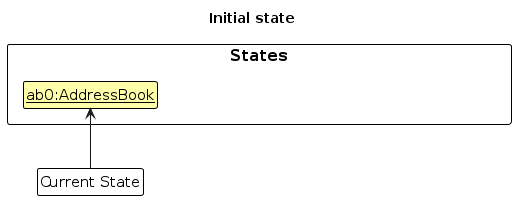
Step 1. The user launches the application for the first time. The VersionedAddressBook will be initialized with the initial address book state, and the currentStatePointer pointing to that single address book state.
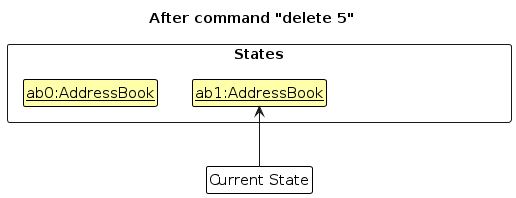
Step 2. The user executes delete ct/5 command to delete the 5th contact in the address book. The delete command calls Model#commitAddressBook(), causing the modified state of the address book after the delete ct/5 command executes to be saved in the addressBookStateList, and the currentStatePointer is shifted to the newly inserted address book state.
Step 3. The user executes addcontact n/David ... to add a new contact. The addcontact command also calls Model#commitAddressBook(), causing another modified address book state to be saved into the addressBookStateList.
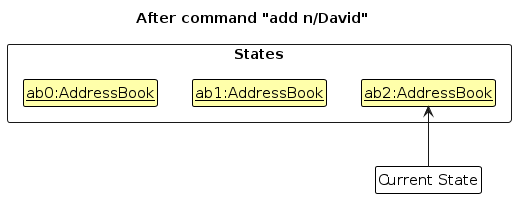
Note: If a command fails its execution, it will not call Model#commitAddressBook(), so the address book state will not be saved into the addressBookStateList.
Step 4. The user now decides that adding the contact was a mistake, and decides to undo that action by executing the undo command. The undo command will call Model#undoAddressBook(), which will shift the currentStatePointer once to the left, pointing it to the previous address book state, and restores the address book to that state.
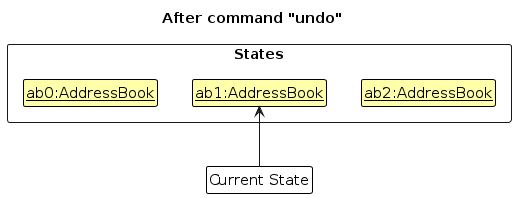
Note: If the currentStatePointer is at index 0, pointing to the initial AddressBook state, then there are no previous AddressBook states to restore. The undo command uses Model#canUndoAddressBook() to check if this is the case. If so, it will return an error to the user rather
than attempting to perform the undo.
The following sequence diagram shows how an undo operation goes through the Logic component:
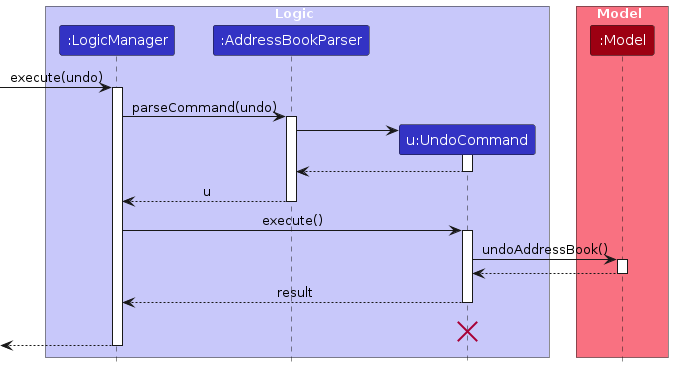
Note: The lifeline for UndoCommand should end at the destroy marker (X) but due to a limitation of PlantUML, the lifeline reaches the end of diagram.
Similarly, how an undo operation goes through the Model component is shown below:
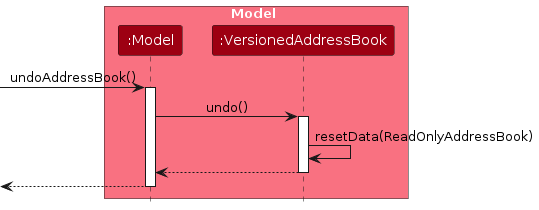
The redo command does the opposite — it calls Model#redoAddressBook(), which shifts the currentStatePointer once to the right, pointing to the previously undone state, and restores the address book to that state.
Note: If the currentStatePointer is at index addressBookStateList.size() - 1, pointing to the latest address book state, then there are no undone AddressBook states to restore. The redo command uses Model#canRedoAddressBook() to check if this is the case. If so, it will return an error to the user rather than attempting to perform the redo.
Step 5. The user then decides to execute the command list. Commands that do not modify the address book, such as list, will usually not call Model#commitAddressBook(), Model#undoAddressBook() or Model#redoAddressBook(). Thus, the addressBookStateList remains unchanged.
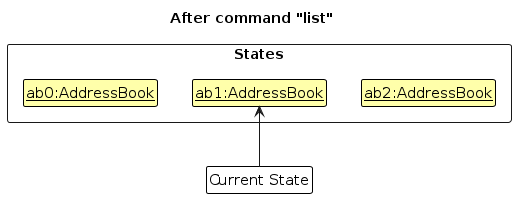
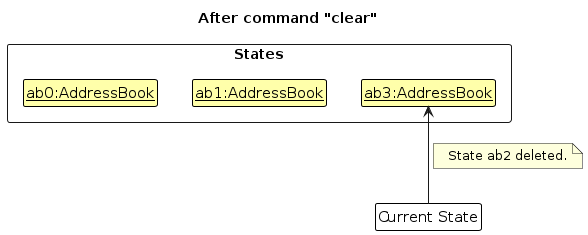
Step 6. The user executes clear, which calls Model#commitAddressBook(). Since the currentStatePointer is not pointing at the end of the addressBookStateList, all address book states after the currentStatePointer will be purged. Reason: It no longer makes sense to redo the addcontact n/David ... command. This is the behavior that most modern desktop applications follow.
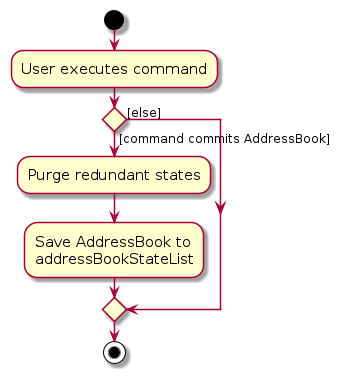
The following activity diagram summarizes what happens when a user executes a new command:
Design considerations
Aspect: How undo & redo executes:
Alternative 1 (current choice): Saves the entire address book.
Pros: Easy to implement.
Cons: May have performance issues in terms of memory usage.
Alternative 2: Individual command knows how to undo/redo by itself.
Pros: Will use less memory (e.g. for
delete, just save the contact, class, or assignment being deleted).Cons: We must ensure that the implementation of each individual command are correct.
Documentation, Logging, Testing, Configuration, DevOps
Appendix: Requirements
Product scope
Target user profile:
- for educators
- has a need to manage a significant number of student, parent or fellow colleague contacts
- has a need to manage class groups and their associated contacts
- has a need to manage a significant number of tasks and assignments
- prefer desktop apps over other types
- can type fast
- prefers typing to mouse interactions
- is reasonably comfortable using CLI apps
Value proposition:
- manage students, parents, colleagues, supervisors, bosses, etc. faster than a typical mouse/GUI driven app
- provides easy access and management of class groups and assignments in one place
User stories
Priorities: High (must have) - * * *, Medium (nice to have) - * *, Low (unlikely to have) - *
| Priority | As a ... | I want to ... | So that I can ... |
|---|---|---|---|
* * * | new user | see usage instructions | refer to instructions when I forget how to use the App |
* * * | user | delete a contact | remove entries that I no longer need |
* * * | user | find a contact by name | locate details of contacts without having to go through the entire list |
* * * | user | find contacts by a specific field | narrow down my search to quickly locate the right contact |
* * * | user | add contacts | easily retrieve them |
* * * | user | see all the assignments/contacts/classes | keep track of what has been created |
* * | busy user | add deadlines/events | keep track of my things easily |
* * * | teacher managing many students | organize my students into separate groups by class | easily identify which students belong to which class |
* * * | teacher | see all assignment status for each student | keep track of every individual's performance |
* * * | teacher changing classes every year | easily delete multiple old contacts | keep only the contacts I need accessible |
* * * | CLI user | quickly exit the program | avoid wasting time clicking the close button |
* * | user | hide private contact details | minimize chance of someone else seeing them by accident |
* * | user pursuing efficiency | sort contacts by date accessed | easily find the most recently contacted contacts |
* * | forgetful teacher | find students even when I mistype their names | easily find them even if I don't remember the exact spelling of their name |
* * | user with multiple devices | export and import selected contacts | easily switch between devices |
* * | meticulous teacher | add private notes (e.g., allergies) | recall critical student welfare details |
* * | user | retrieve my input history | avoid retyping the entire command when I make a small typo |
* * | careless user | undo my actions | correct mistakes without losing my work |
* * | form teacher | retrieve emails of a specific group | blast announcements via email without manual entry |
* * | teacher managing committees | assign custom tags (e.g., "Prefect") | filter students by extra-curricular roles |
* * | normal user | edit contact details | keep my contact information up to date |
* * | teacher | edit class details | keep class information up to date |
* * | teacher | edit assignment details | keep assignment information up to date |
* * | teacher | mark an assignment as submitted for a student | track which students have handed in their work |
* * | teacher | unmark a submission for a student | correct accidental submission records |
* * | teacher | grade an assignment for a student | record the student's score for that assignment |
* * | teacher | remove a grade for a student | correct grading mistakes |
* | user with many contacts in the address book | sort contacts by name | locate a contact easily |
* | forgetful user | have reminders for my deadlines | do not forget my tasks |
* | busy user | view all events/deadlines in a calendar view | see my schedule at a glance |
Use cases
(For all use cases below, the System is ClassroomPlusPlus and the Actor is the user (a teacher), unless specified otherwise)
Use Case 1: Add a New Contact
MSS
- User requests to add a contact with fields (Name, Phone, Email, Address, Class name, Assignment name, Tags).
- System shows updated contact list (Use Case 2).
- Use case ends.
Extensions
- 1a. User left 1 or more optional fields blank (e.g. Class name, Assignment name, Tags).
- 1a1. System accepts the input and proceeds.
- 1b. A contact with the same name exists in contact list.
- 1b1. System shows an error message.
- 1b2. Use case ends.
- 1c. Invalid or missing fields.
- 1c1. System shows an error message.
- 1c2. Use case ends.
Use Case 2: List Contacts
MSS
- User requests to list contacts.
- System shows the list of contacts.
- Use case ends.
Extensions
- 1a. No contacts exist in the list.
- 1a1. System shows an empty list with a label indicating that no contacts exist.
- 1a2. Use case ends.
Use Case 3: Add a New Class
MSS
- User requests to add a class with fields (Class name, Contact indices).
- System updates the list of known classes with the new class, allocating the specified contacts to it.
- Use case ends.
Extensions
- 1a. A class with the same name exists in class list.
- 1a1. System shows an error message.
- 1a2. Use case ends.
- 1b. User left optional Contact indices field blank.
- 1b1. System accepts the input and proceeds, creating the class with no contacts allocated to it.
- 1c. Invalid or missing fields.
- 1c1. System shows an error message.
- 1c2. Use case ends.
Use Case 4: List Classes
MSS
- User requests to list classes.
- System shows the list of classes.
- Use case ends.
Extensions
- 1a. No classes exist in the list.
- 1a1. System shows an empty list with a label indicating that no classes exist.
- 1a2. Use case ends.
Use Case 5: Allocate Contacts to a Class
MSS
- User requests to allocate contact(s) to a class.
- System allocates the contact(s) to the class.
- Use case ends.
Extensions
- 1a. Invalid contact or class.
- 1a1. System shows an error message.
- 1a2. Use case ends.
- 1b. Contact is already allocated to the class.
- 1b1. System proceeds with Step 2 without the contact.
- 1b2. Use case ends.
- 2a. No contacts are allocated to the class.
- 2a1. System shows an error message.
- 2a2. Use case ends.
Use Case 6: Unallocate Contacts from a Class
MSS
- User views the list of contacts allocated to a class (Use Case 21).
- User requests to unallocate a contact from the class.
- System unallocates the contact from the class.
- Use case ends.
Extensions
- 2a. Invalid contact or class.
- 2a1. System shows an error message.
- 2a2. Use case ends.
- 2b. Contact is not allocated to the class.
- 2b1. System proceeds with Step 3 without the contact.
- 2b2. Use case ends.
- 3a. No contacts are unallocated from the class.
- 3a1. System shows an error message.
- 3a2. Use case ends.
Use Case 7: Add a New Assignment
MSS
- User requests to add an assignment with fields (Assignment name, Deadline, Class name, Contact indices).
- System updates the list of known assignments with the new assignment, allocating it to the specified contacts and any contacts in the specified class.
- Use case ends.
Extensions
- 1a. An assignment with the same name exists in assignment list.
- 1a1. System shows an error message.
- 1a2. Use case ends.
- 1b. Invalid or missing fields.
- 1b1. System shows an error message.
- 1b2. Use case ends.
- 1c. User left optional fields blank (e.g. Class name, Contact indices).
- 1c1. System accepts the input and proceeds.
Use Case 8: List Assignments
MSS
- User requests to list assignments.
- System shows the list of assignments.
- Use case ends.
Extensions
- 1a. No assignments exist in the list.
- 1a1. System shows an empty list with a label indicating that no assignments exist.
- 1a2. Use case ends.
Use Case 9: Allocate an Assignment
MSS
- User requests to allocate an assignment with fields (Assignment name, Class name, Contact indices).
- System allocates the assignment to the contacts.
- Use case ends.
Extensions
- 1a. Invalid assignment, class, or contacts.
- 1a1. System shows an error message.
- 1a2. Use case ends.
- 1b. Assignment is already allocated to one of the contacts.
- 1b1. System proceeds with Step 2 without the contact.
- 1c. User left only the Class name field blank.
- 1c1. System proceeds with Step 2, allocating only to contacts specified.
- 1d. User left only the Contact indices field blank.
- 1d1. System proceeds with Step 2, allocating to all contacts in the specified class.
- 1e. User left both Class name and Contact indices fields blank.
- 1e1. System shows an error message.
- 1e2. Use case ends.
- 2a. No contacts are allocated the assignment.
- 2a1. System shows an error message.
- 2a2. Use case ends.
Use Case 10: Unallocate an Assignment
MSS
- User views the list of contacts allocated to an assignment (Use Case 22).
- User requests to unallocate an assignment with fields (Assignment name, Class name, Contact indices).
- System unallocates the assignment from the contacts.
- Use case ends.
Extensions
- 2a. Invalid assignment, class, or contacts.
- 2a1. System shows an error message.
- 2a2. Use case ends.
- 2b. Assignment is not allocated to one of the contacts.
- 2b1. System proceeds with Step 3 without the contact.
- 2c. User left only the Class name field blank.
- 2c1. System proceeds with Step 3, unallocating only from contacts specified.
- 2d. User left only the Contact indices field blank.
- 2d1. System proceeds with Step 3, unallocating from all contacts in the specified class.
- 2e. User left both Class name and Contact indices fields blank.
- 2e1. System shows an error message.
- 2e2. Use case ends.
- 3a. No contacts are unallocated the assignment.
- 3a1. System shows an error message.
- 3a2. Use case ends.
Use Case 11: Delete Contacts
MSS
- User requests to delete contact(s).
- System removes the contact(s) from the contact list, unallocating them from any classes and assignments they are allocated to.
- Use case ends.
Extensions
- 1a. Invalid contact.
- 1a1. System shows an error message.
- 1a2. Use case ends.
Use Case 12: Delete a Class
MSS
- User requests to delete a class.
- System removes the class from the class list, and unallocates any students belonging to the class.
- Use case ends.
Extensions
- 1a. Invalid class.
- 1a1. System shows an error message.
- 1a2. Use case ends.
- 1b. User specified multiple classes to delete.
- 1b1. System shows an error message.
- 1b2. Use case ends.
Use Case 13: Delete an Assignment
MSS
- User requests to delete an assignment.
- System removes the assignment from the assignment list, and from any students who have it allocated.
- Use case ends.
Extensions
- 1a. Invalid assignment.
- 1a1. System shows an error message.
- 1a2. Use case ends.
- 1b. User specified multiple assignments to delete.
- 1b1. System shows an error message.
- 1b2. Use case ends.
Use Case 14: Edit a Contact
MSS
- User requests to edit a contact with updated fields (Name, Phone, Email, Address, Tags).
- System updates the contact with the new details.
- Use case ends.
Extensions
- 1a. Invalid contact.
- 1a1. System shows an error message.
- 1a2. Use case ends.
- 1b. No fields provided to edit.
- 1b1. System shows an error message.
- 1b2. Use case ends.
- 1c. Invalid field format.
- 1c1. System shows an error message.
- 1c2. Use case ends.
Use Case 15: Edit a Class
MSS
- User requests to edit a class with an updated name.
- System updates the class with the new name.
- Use case ends.
Extensions
- 1a. Invalid class.
- 1a1. System shows an error message.
- 1a2. Use case ends.
- 1b. No fields provided to edit.
- 1b1. System shows an error message.
- 1b2. Use case ends.
- 1c. A class with the new name already exists.
- 1c1. System shows an error message.
- 1c2. Use case ends.
Use Case 16: Edit an Assignment
MSS
- User requests to edit an assignment with updated fields (Name, Deadline).
- System updates the assignment with the new details.
- Use case ends.
Extensions
- 1a. Invalid assignment.
- 1a1. System shows an error message.
- 1a2. Use case ends.
- 1b. No fields provided to edit.
- 1b1. System shows an error message.
- 1b2. Use case ends.
- 1c. Invalid field format (e.g. invalid deadline).
- 1c1. System shows an error message.
- 1c2. Use case ends.
Use Case 17: Find a Contact
MSS
- User requests to find contacts by name, phone, or email.
- System displays the matching contacts.
- Use case ends.
Extensions
- 1a. No contacts match the search query.
- 1a1. System shows an empty list with a label indicating no matches found.
- 1a2. Use case ends.
- 1b. Invalid search query (e.g. invalid field, or missing search substring).
- 1b1. System shows an error message.
- 1b2. Use case ends.
Use Case 18: Find a Class
MSS
- User requests to find a class by name.
- System displays the matching classes.
- Use case ends.
Extensions
- 1a. No classes match the search query.
- 1a1. System shows an empty list with a label indicating no matches found.
- 1a2. Use case ends.
- 1b. Invalid search query (e.g. invalid field, or missing search substring).
- 1b1. System shows an error message.
- 1b2. Use case ends.
Use Case 19: Find an Assignment
MSS
- User requests to find an assignment by name or deadline.
- System displays the matching assignments.
- Use case ends.
Extensions
- 1a. No assignments match the search query.
- 1a1. System shows an empty list with a label indicating no matches found.
- 1a2. Use case ends.
- 1b. Invalid search query (e.g. invalid field, or missing search substring).
- 1b1. System shows an error message.
- 1b2. Use case ends.
Use Case 20: View a Contact
MSS
- User views the list of contacts (Use Case 2).
- User requests to view a contact.
- System displays the contact details, including any assignments and classes allocated to the contact.
- Use case ends.
Extensions
- 2a. Invalid contact.
- 2a1. System shows an error message.
- 2a2. Use case ends.
- 2b. Contact has no classes allocated but has assignments allocated.
- 2b1. System displays the contact details including any assignments allocated, but with a label indicating that the contact is not allocated to any classes.
- 2b2. Use case ends.
- 2c. Contact has no assignments allocated but has classes allocated.
- 2c1. System displays the contact details including any classes allocated, but with a label indicating that the contact is not allocated to any assignments.
- 2c2. Use case ends.
- 2d. Contact has no classes or assignments allocated.
- 2d1. System displays the contact details with labels indicating that the contact is not allocated to any classes or assignments.
- 2d2. Use case ends.
Use Case 21: View a Class
MSS
- User views the list of classes (Use Case 4).
- User requests to view a class.
- System displays the class details and associated contacts.
- Use case ends.
Extensions
- 2a. Invalid class.
- 2a1. System shows an error message.
- 2a2. Use case ends.
- 2b. Class has no contacts allocated.
- 2b1. System displays the class details with a label indicating that no contacts are allocated to the class.
- 2b2. Use case ends.
Use Case 22: View an Assignment
MSS
- User views the list of assignments (Use Case 8).
- User requests to view an assignment.
- System displays the assignment details and associated contacts.
- Use case ends.
Extensions
- 2a. Invalid assignment.
- 2a1. System shows an error message.
- 2a2. Use case ends.
- 2b. Assignment has no contacts allocated.
- 2b1. System displays the assignment details with a label indicating that no contacts are allocated to the assignment.
- 2b2. Use case ends.
Use Case 23: Update Submission Status of an Assignment
MSS
- User requests to update contacts' submission statuses for an assignment.
- System updates the assignment's submission status for the contact(s).
- Use case ends.
Extensions
- 1a. Invalid contact or assignment.
- 1a1. System shows an error message.
- 1a2. Use case ends.
- 1b. Contact is not allocated the assignment.
- 1b1. System proceeds with Step 2 without the contact.
- 1b2. Use case ends.
- 1c. Invalid new submission status for a contact (e.g., submitting when already submitted, unsubmitting when not submitted).
- 1c1. System proceeds with Step 2 without the contact.
- 1c2. Use case ends.
- 2a. No contacts' submission statuses are updated.
- 2a1. System shows an error message.
- 2a2. Use case ends.
- 2b. A contact's assignment submission has already been graded for unsubmitting.
- 2b1. System also ungrades the assignment (Use Case 25) for the contact.
- 2b2. System proceeds with Step 2 for the remaining contacts.
Use Case 24: Grade an Assignment
MSS
- User requests to grade an assignment for contact(s) with a score and grading time.
- System grades the assignment for the contact(s) and sets the score.
- Use case ends.
Extensions
- 1a. Invalid assignment or contact.
- 1a1. System shows an error message.
- 1a2. Use case ends.
- 1b. Assignment is already graded for the contact.
- 1b1. System proceeds with Step 2 without the contact.
- 1b2. Use case ends.
- 1c. Invalid score.
- 1c1. System shows an error message.
- 1c2. Use case ends.
- 1d. Contact is not allocated the assignment.
- 1d1. System proceeds with Step 2 without the contact.
- 1d2. Use case ends.
- 1e. Contact has not submitted the assignment.
- 1e1. System proceeds with Step 2 without the contact.
- 1e2. Use case ends.
- 1f. Grading time is before submission time for the contact.
- 1f1. System proceeds with Step 2 without the contact.
- 1f2. Use case ends.
- 1g. Grading time is in the future.
- 1g1. System shows an error message.
- 1g2. Use case ends.
- 1h. Grading time is not specified.
- 1h1. System uses the current time as the grading time.
- 1h2. System proceeds with Step 2.
- 2a. No contacts' assignment is graded.
- 2a1. System shows an error message.
- 2a2. Use case ends.
Use Case 25: Ungrade an Assignment
MSS
- User requests to ungrade an assignment for contact(s).
- System ungrades the assignment for the contact(s) and removes the score and grading information.
- Use case ends.
Extensions
- 1a. Invalid assignment or contact.
- 1a1. System shows an error message.
- 1a2. Use case ends.
- 1b. Assignment is not graded for the contact.
- 1b1. System proceeds with Step 2 without the contact.
- 1b2. Use case ends.
- 1c. Contact is not allocated the assignment.
- 1c1. System proceeds with Step 2 without the contact.
- 1c2. Use case ends.
- 1d. Contact has not submitted the assignment.
- 1d1. System proceeds with Step 2 without the contact.
- 1d2. Use case ends.
- 2a. No contacts' assignment is ungraded.
- 2a1. System shows an error message.
- 2a2. Use case ends.
Non-Functional Requirements
- Should work on any mainstream OS as long as it has Java 17 or above installed.
- Should be able to hold up to 1000 contacts, 500 classes, and 500 assignments without a noticeable performance degradation or sluggishness during typical usage.
- A user with above average typing speed for regular English text (i.e. not code, not system admin commands) should be able to accomplish most of the tasks faster using commands than using the mouse.
- Should respond to user commands within 2 seconds to ensure a smooth user experience.
- Should launch and load existing data within 5 seconds.
- Should handle invalid inputs by highlighting the command input in red with an error message describing the issue and, where applicable, the correct format or usage.
- Should work well for standard screen resolutions of 1920x1080 and higher (at 100% and 125% screen scales), and must remain fully usable for resolutions of 1280x720 and higher (at 150% screen scale).
- Data should be stored locally in a human-editable text file (JSON) without the use of any Database Management System.
- Should automatically save data to the hard disk after any command that modifies the state to prevent data loss.
Glossary
- Assignment: A task created by the user containing minimally a deadline, and may include submission status and grading. Can be allocated to Classes and Contacts.
- Class: A user-defined group of contacts.
- CLI (Command Line Interface): The text-based interface through which users interact with the system by typing commands.
- Command: A text-based instruction entered into the CLI that triggers a system action.
- Contact: An individual entry of a student or teacher, containing minimally a name, phone number, email address, and may include Classes and Assignments.
- Deadline: Time and date specifying the due date of an Assignment.
- Filtered List: A dynamically updated subset of Contacts currently displayed in the GUI.
- GUI (Graphical User Interface): The visual interface of the application that displays tabs, lists, and feedback messages.
- Index: The number shown beside an item in the currently displayed list.
- Invalid: Violates one or more specified formats or constraints defined by the system.
- JSON (JavaScript Object Notation): The human-readable file format used to automatically save and load application data locally.
- Mainstream OS: Windows, Linux, Unix, macOS
- Submission status: The state of an Assignment for a specified Contact (e.g. not submitted, submitted).
- Tags: A user-defined, optional label attached to a Contact for categorization and filtering (e.g. "Prefect").
- Valid: Satisfies all specified format and constraints defined by the system.
Appendix: Instructions for manual testing
Given below are instructions to test the app manually.
Note: These instructions only provide a starting point for testers to work on; testers are expected to do more exploratory testing.
Adding classes
Adding a class group and checking that it is added successfully
Prerequisites: The class group "Class 1" does not exist in the address book, and the user is currently on the Classes tab in the GUI.
Test case:
addclass c/Class 1Expected outcome:
New class group added: Class 1
Adding a class group that already exists
Prerequisites: The class group "Class 1" already exists in the address book.
Test case:
addclass c/Class 1Expected outcome:
This class group already exists in the address book
Adding assignments
Adding an assignment and checking that it is added successfully
Prerequisites: The assignment "Assignment 1" does not exist in the address book, and the user is currently on the Assignments tab in the GUI.
Test case:
addass ass/Assignment 1 d/12-12-2026 23:59Expected outcome:
New assignment added: Assignment 1; Deadline: 12-12-2026 23:59
Adding an assignment that already exists
Prerequisites: The assignment "Assignment 1" already exists in the address book.
Test case:
addass ass/Assignment 1 d/12-12-2026 23:59Expected outcome:
This assignment already exists in the address book
Grading assignments
Grading an assignment before it is submitted should fail
Prerequisites: The assignment "Assignment 1" exists in the address book, and the contact with index 1 (Alex Yeoh) is allocated the assignment but has not submitted it.
Test case:
grade ass/Assignment 1 ct/1 s/90.654Expected outcome:
Failed to grade any contacts for the assignment.
Contacts not graded (already graded): None
Contacts not graded (not submitted yet): Alex Yeoh
Contacts not graded (not allocated the assignment): None
Contacts not graded (grade time before submission time): None
Grading a submitted assignment
Prerequisites: The assignment "Assignment 1" exists in the address book, and the contact with index 1 (Alex Yeoh) is allocated the assignment and has submitted it.
Test case:
grade ass/Assignment 1 ct/1 s/90.654Expected outcome:
Graded assignment: Assignment 1; Deadline: 12-12-2026 23:59 on <Date and time at which command is executed> for 1 contact(s) with score 90.7.
Contacts graded: Alex Yeoh
Contacts not graded (already graded): None
Contacts not graded (not submitted yet): None
Contacts not graded (not allocated the assignment): None
Contacts not graded (grade time before submission time): None
Appendix: Effort
The difficulty level of CPP is estimated to be around a moderate level. Extensive features have been introduced to CPP in a short amount of time.
Some achievements of our team include the introduction of 2 entirely new entities (Classes and Assignments) to the address book, which took a significant amount of effort to implement, given the complexity of integrating them into the existing system which resulted in many areas of development.
We also introduced various features related to them, such as the ability to allocate and unallocate classes and assignments, update submission status and grading details for each contact's assignment submission, and view the details of each contact, class, and assignment.
Other features that were modified to fit our new design include the edit command, which now allows editing of class and assignment details, and the delete command, which now also deletes the associated classes and assignments for a contact.
The GUI had to be modified to accommodate the new entities, to be able to display the details of each contact, class, and assignment, and to provide a way for users to navigate between the different tabs. The list and find (now findcontact, findclass, findass) commands also had a rework to be able to list and filter the different entities based on the current tab.
To make the user experience smoother, we also implemented various features such as allocation options during contact, class, and assignment creation.
Overall, the introduction of the new entities and their associated features required a significant amount of effort in terms of design, implementation, and testing, covering a wide range of areas in the codebase and requiring 21091 lines of code changes (accurate as of 29-03-2026).
Appendix: Planned Enhancements
Team size: 5
Filtering contacts by their submission and grading status for a specific assignment
Description: Allow users to filter contacts based on their submission and grading status for a specific assignment. For example, users can filter to see only those contacts who have submitted an assignment but have not been graded yet.
Proposed implementation: Introduce new filter options in the
viewcommand that allow users to specify the assignment and the desired submission/grading status. The system will then display the filtered list of contacts accordingly.Example usage:
Command:
view ass/Assignment 1 sub/true grade/falseExpected outcome: List of contacts who have submitted the assignment but have not been graded yet.
Sorting contacts by their scores for a specific assignment
Description: Allow users to sort contacts based on their scores for a specific assignment.
Proposed implementation: Introduce a new sort option in the
viewcommand that allows users to specify the assignment and the sorting criteria (e.g., ascending or descending order of scores). The system will then display the list of contacts accordingly.Example usage:
Command:
view ass/Assignment 1 sort/score ascExpected outcome: List of contacts sorted by their scores for the specified assignment in ascending order.
Archiving contacts, classes, and assignments
Description: Allows users to archive unused contacts, classes, and assignments, so that they can focus on the currently relevant ones.
Proposed implementation: Introduce a new
archivecommand that allows users to move contacts, classes, and assignments to an archive state, making them hidden from the default view.Example usage:
Command:
archive ct/1orarchive c/Class 1orarchive ass/Assignment 1Expected outcome: The specified contact, class, or assignment is moved to the archive state and hidden from the default view.
Taking attendance for classes
Description: Allows users to mark the attendance of contacts for specific classes.
Proposed implementation: Introduce a new
attendandabsentcommand that allows users to mark the attendance of contacts for a specific class.Example usage:
Command:
attend c/Class 1 ct/1 2 3 4 5Expected outcome: The specified contacts with index 1, 2, 3, 4, 5 are marked as present for the given class.
Command:
absent c/Class 1 ct/6 7 8 9 10Expected outcome: The specified contacts with index 6, 7, 8, 9, 10 are marked as absent for the given class.
Exporting data as a CSV file
Description: Allows users to export the data in the address book to a file.
Proposed implementation: Introduce a new
exportcommand that allows users to export the data in the address book to a CSV file.Example usage:
Command:
export f/contacts.csvExpected outcome: The data in the address book is exported to a file named
contacts.csv, with the contacts, classes, and assignments organized in a structured format.